![logo-enrollify white.png]](https://knowledge.enrollify.com/hs-fs/hubfs/logo-enrollify%20white.png?height=40&name=logo-enrollify%20white.png)
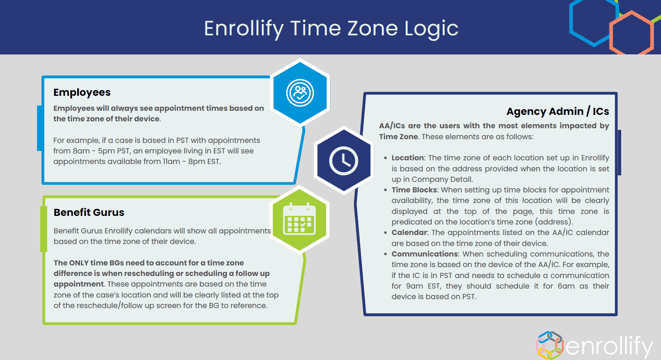
Employees always see appointment times based on the time zone of their device.
Example: A case is based in PST with appointments available from 8am–5pm PST. An employee living in EST will see those same appointments listed as 11am–8pm EST.
Benefit Gurus (BGs)Benefit Guru calendars in Enrollify show all appointments based on the time zone of their device.
The only time a BG needs to account for a time zone difference is when rescheduling or scheduling a follow-up appointment. These appointments are based on the time zone of the case's location, and that time zone is clearly listed at the top of the reschedule/follow-up screen for reference.
Agency Admins / Implementation Coordinators (AA/ICs)AA/ICs are affected by time zone logic in the most places. Here's how it applies across each area:
- Location: The time zone for each location in Enrollify is determined by the address entered in Company Detail.
- Time Blocks: When setting up appointment availability, the time zone shown at the top of the page is based on the location's time zone (address).
- Calendar: Appointments on the AA/IC calendar are based on the time zone of their device.
- Communications: When scheduling communications, the time zone used is based on the AA/IC's device — not the case location.
Example: An IC is based in PST and needs to schedule a communication to go out at 9am EST. Since their device is set to PST, they should schedule it for 6am on their end.